
Laser Cutter Test File Guide: Files, Tips, and Calibration Tactics

Why Every Laser Cutter Operator Needs a Test File
A laser cutter test file is an essential tool for every laser cutting operation.
It serves as a controlled experiment, not a project file.
The test file contains calibration lines, engraved gradients, and perforations that help gauge how the machine behaves before committing to actual materials.
Running a test file helps in confirming focus, checking alignment drift, and understanding how different materials like wood, acrylic, or leather react.
Think of the test file as your diagnostic tool: it ensures the machine’s optics, mirrors, and table positions are aligned before starting any actual project.
Always run this file when setting up a new cutter, changing materials, or after moving the machine.
Stick with universal formats such as SVG or DXF for software compatibility, and save material- and thickness-specific variants for future use.
Key Elements in a Laser Cutter Test File
A well-crafted test file includes a few must-have geometries:
- Kerf lines: These parallel cuts with tiny gaps help you measure the material the beam consumes, enabling you to adjust the fit in CAD.
- Nested shapes: These show how clean corners stay when cutting small pieces, essential for tags or puzzle kits.
- Hatch patterns and shading ramps: These reveal the effectiveness of engraving power and frequency, showing soft or blown-out areas.
- Alignment grids or drilled dots: These help ensure the head hits the exact coordinates printed in your layout.
Label each layer with its intended settings or material, using color coding to differentiate cut, score, and engrave passes.
If running tests for different materials, keep them grouped for clarity.
Step-by-Step Workflow for Running a Test File
Follow this workflow for effective test runs:
- Prepare the Machine: Secure the sheet flat, clean the bed of debris, and confirm focus height.
- Check Lenses: Clean lenses if needed.
- Load the Test File: Run low-power engraves or perforations first before committing to full cuts.
- Engrave First: Engrave before cutting to avoid scorching interfering with edge inspection.
- Measure and Inspect: Use calipers to measure kerf width and check for issues like edge splitting or melting.
- Record Settings: Write down each material batch, setting, and your observations in a log for future reference.
This documentation helps with future jobs, whether it’s for engraved gifts or detailed signage.
Material-Specific Test Strategies
Each material requires a tailored test approach:
- Wood: For plywood and MDF, test the lowest power that still cuts cleanly to avoid heavy charring.
- Acrylic: Focus on smooth, mirror-like edges. Adjust speed before increasing power and maintain steady airflow to prevent yellowing.
- Cardboard and Leather: Use minimal power with high speed to avoid warping or burning, and ensure complete perforations when scoring fold lines.
- Overheating Signs: Check for overheating signs in each material and re-run relevant sections of your test file when changing material suppliers or thicknesses.
Tips for Interpreting Test Results and Adjusting Settings
When interpreting test results, consider the following:
- Kerf Width: Measure the kerf width and adjust the compensation offset in CAD for a snug fit.
- Cut Edges: A fuzzy edge might indicate slow speed or an off-angle air assist, while glossy residues may suggest the beam is lingering too long in one spot.
- Incomplete Cuts: Incomplete perforations or uncut tabs usually indicate insufficient power or a dirty lens.
- Engraving Gradients: A sharp drop-off in engraving quality suggests the material might need a slower speed or higher frequency.
Keep a maintenance log to track inconsistencies.
If results start drifting, it could signal a need for mirror cleaning, re-alignment, or recalibration.
Creality Falcon Best-Fit Pick
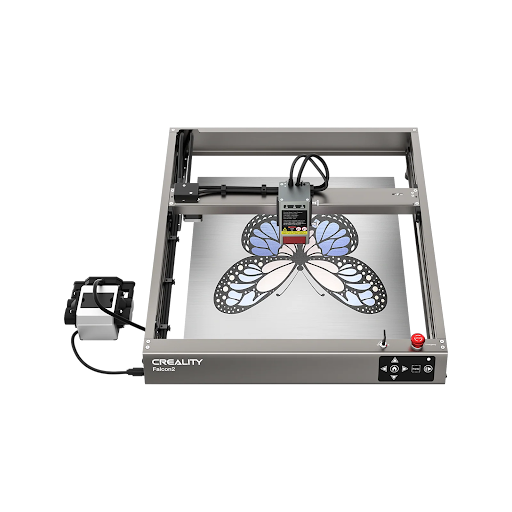
The Creality Falcon 40W stands out for its reliability in test-file execution.
It consistently hits the same spot, ensuring the accuracy of test results.
The Falcon’s user-friendly interface allows you to save specific settings for various materials, eliminating guesswork in future runs.
Its ability to handle layered files makes it ideal for testing multiple thicknesses or engraving passes.
The Creality community often shares test files, offering valuable insights to refine your strategy.
A detailed log of test runs will save time troubleshooting issues later.
Creating and Managing Your Own Laser Cutter Test File Library
Treat your test files as a growing library.
Organize files by machine, material, and purpose, such as “Falcon 40W acrylic” or “prototype wood engrave.”
Annotate each layer with the tested settings, date, and whether you were aiming for cleaner edges or deeper engraving.
Share your files with colleagues or fellow makers to ensure everyone benefits from a consistent baseline.
Back up your files in the cloud to avoid data loss, and always save new versions instead of overwriting old ones to compare results over time.
This practice allows you to track how changes in material or machine settings affect outcomes, especially in varying conditions like humidity or after cleaning cycles.
