
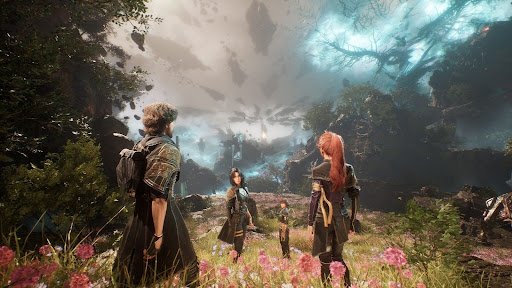
Best Settings for Clair Obscur: Expedition 33 — Get the Most Out of Every Scene

There are not many debut titles that arrive with this level of visual ambition. Clair Obscur: Expedition 33, crafted by Sandfall Interactive, drops players into a melancholy, painterly world where death works on a countdown and every expedition could be the last. The art direction alone is enough to stop the game in its tracks — but Unreal Engine 5 does not come cheap in terms of hardware demands, and without the right configuration, that beauty gets buried under stutters and frame drops.
This guide cuts straight to what matters: which settings to change, which ones to leave alone, and how to build a configuration that actually holds up across the full game — not just the opening hours.
A Quick Word Before Starting
Getting a good price on the game itself is worth mentioning before anything else. The Lootbar store has become a reliable spot for picking up an Expedition 33 Steam key at a genuinely competitive rate. Compared to standard digital storefronts, Lootbar tends to undercut on pricing without any of the usual risks — keys are legitimate, delivery is fast, and the experience is clean. Worth checking before heading elsewhere to buy game key deals at full price.
Why the Settings Actually Matter Here
Expedition 33 is not your typical indie RPG hiding behind a pixel art style. This is a full UE5 production with Lumen lighting, Nanite geometry, and Virtual Shadow Maps doing heavy lifting across every environment. The Continent — the game’s central world — is packed with dense foliage, soft ambient lighting, and intricate architectural detail that all combine to create extraordinary scenes. All of that demands something from the hardware, and the default “Epic” preset will choke most mid-range setups.
The good news is that the performance-to-visual-quality ratio is far more forgiving than other UE5 releases. With targeted adjustments, it is possible to shed a significant chunk of GPU load while barely touching image quality where it counts.
Display and Resolution — Start Here
Resolution Scale and Upscaling
This is the single biggest lever in the entire settings menu. Expedition 33 supports DLSS 3.7 for NVIDIA users, FSR 3 for AMD, XeSS 2 for Intel, and the native TSR option built into Unreal Engine 5.
For RTX card owners, DLSS is the obvious pick — it holds sharpness in motion better than any alternative and integrates cleanly with the game’s visual style. The recommended modes per display:
- 4K: DLSS Performance or Balanced
- 1440p: DLSS Balanced is the sweet spot
- 1080p: DLSS Quality keeps the image crisp without giving up too many frames
AMD users should lean on FSR 3 with Quality mode at 1080p/1440p. It does not match DLSS at close inspection, but in motion and during combat it holds up admirably.
Frame Rate Cap and V-Sync
Capping at 60 FPS is recommended for most setups — it keeps frame pacing predictable and reduces GPU thermals during long sessions. Players on 144Hz displays can push the cap higher, though the game’s cinematic cutscenes are rendered at 30 FPS regardless, so fluctuating above that during those moments does not add anything. V-Sync is worth disabling if the monitor has G-Sync or FreeSync support; those technologies handle tearing more gracefully without the input lag that traditional V-Sync introduces.
Graphics Settings — Where to Trim and Where to Hold
Global Illumination (Lumen)
Leave this at High. Going all the way to Epic yields modest improvements in the softness of bounce lighting in enclosed spaces — caves, interiors, shadowed ruins — but the frame cost is not justified unless running a high-end GPU with headroom to spare. Dropping below High is not recommended; Lumen at Medium visibly flattens the lighting in ways that affect the entire mood of outdoor scenes.
Shadow Quality (Virtual Shadow Maps)
This is the setting to prioritize reducing if performance is tight. Virtual Shadow Maps are gorgeous — they produce realistic contact shadows and soft penumbrae that make the world feel grounded — but at Epic quality they carry a real cost, sometimes 10–15% of total frame time on their own. Setting this to High rather than Epic produces shadows that are essentially indistinguishable in motion. Only static screenshots at close zoom reveal any meaningful difference.
Effects Quality
Combat in Expedition 33 is a light show. Skills and abilities launch elaborate particle effects across the battlefield, and during multi-enemy encounters with multiple party members all acting in sequence, these effects stack fast. Effects Quality at High instead of Epic can recover 10–15 FPS during those peak moments. This is one of the highest-impact changes in the entire menu, and it does not visibly degrade anything during the actual heat of battle when there is already plenty happening on screen.
Texture Quality
Purely a VRAM question. 8 GB or more: High or Epic is fine. 6 GB cards should sit at Medium to avoid overflow, which causes sudden stutters and pop-in that no amount of other settings can fix.
Foliage Quality
Do not drop this below High. The Continent is lush, overgrown, and visually rich, and foliage quality directly affects how much plant geometry populates the world. At Medium or below, distant tree canopies and groundcover thin out noticeably, which strips the environments of their immersive density. The performance savings below High are not large enough to justify the visual loss.
Post-Processing and Reflections
Both can sit at Medium without any obvious degradation during gameplay. Reflections at Medium still capture moving water and wet surfaces accurately. Post-processing at Medium preserves the game’s distinctive color grading and bloom. Neither setting is worth running at Epic unless GPU headroom is abundant.
Shading Quality
High is the right call for most systems. Epic shading adds nuance to how light scatters through dense foliage — a nice touch in the game’s forest areas — but the improvement is subtle enough that only direct comparison reveals it. High shading is where the quality-to-cost ratio peaks.
Recommended Configurations by System
High-End Rigs (RTX 4070 Ti / RX 7900 XT and higher) Run most settings at Epic. Lower Effects Quality to High as a precaution during combat-heavy areas. Use DLSS or FSR Balanced at 1440p. Expect consistent 60–90+ FPS.
Mid-Range (RTX 3070 / RX 6700 XT) Global Illumination: High. Shadows: High. Effects: High. Foliage: High. Textures: High. Post-Processing and Reflections: Medium. DLSS Balanced at 1440p or DLSS Quality at 1080p. Target: 60 FPS with occasional dips during large combat encounters.
Entry-Level (RTX 3060 / RX 6600 XT) Global Illumination: High. Shadows: Medium. Effects: Medium. Foliage: High. Textures: Medium. Reflections and Post-Processing: Medium. DLSS Performance at 1080p. Realistic target: 50–60 FPS with dips during heavy combat.
Gameplay and Accessibility Worth Knowing
Parry Assist and Timing Windows
Expedition 33 layers real-time parry mechanics on top of its turn-based structure. The timing windows are tight, and early in the game the margin for error during boss encounters can feel unforgiving. The accessibility menu includes options to widen these windows, which is worth considering for players new to the system rather than powering through frustration.
Camera Shake
Disable this. The game’s combat camera is dynamic and expressive, but the shake can become fatiguing during extended sessions. Turning it off loses nothing meaningful from the experience.
Motion Blur
Largely a personal preference, but motion blur at high levels can make the game’s faster traversal moments feel smeared. Setting it to Low or Off keeps movement readable without affecting the cinematic quality of cutscenes.
Final Configuration Summary
The configuration that works across the widest range of hardware: Global Illumination at High, Shadows at High, Effects at High, Foliage at High, Textures scaled to VRAM, Reflections and Post-Processing at Medium, upscaling enabled at Balanced or Quality mode depending on resolution. Camera Shake off, motion blur low or off.
